

Full fidelity
When you use full fidelity mode, W&B breaks the x-axis into dynamic buckets. The number of points per line adapts to chart size and the number of runs. It calculates the minimum and maximum values within each bucket (used for optional shading) and uses the last value in each bucket (not the average) to draw the primary line. There are three main advantages to using full fidelity mode for point aggregation:- Preserve extreme values and spikes: retain extreme values and spikes in your data.
- Configure how minimum and maximum points render: use the W&B App to interactively decide whether you want to show extreme (min/max) values as a shaded area.
- Explore your data without losing data fidelity: W&B recalculates x-axis bucket sizes when you zoom into specific data points. This helps ensure that you can explore your data without losing accuracy. Caching is used to store previously computed aggregations to help reduce loading times which is particularly useful if you are navigating through large datasets.
Turn on full fidelity
W&B uses full fidelity mode by default. To configure it manually, follow these steps:- All charts in a workspace
- Individual chart in a workspace
- Navigate to your workspace.
- Select the gear icon on the top right corner of the screen next to the left of the Add panels button.
- From the UI slider that appears, select Line plots
- Choose Full fidelity from the Point aggregation section.
- Configure the Smoothing algorithm and settings.
- Set Aggregation to Mean, Min, or Max.
- Click Apply.
Configure shading
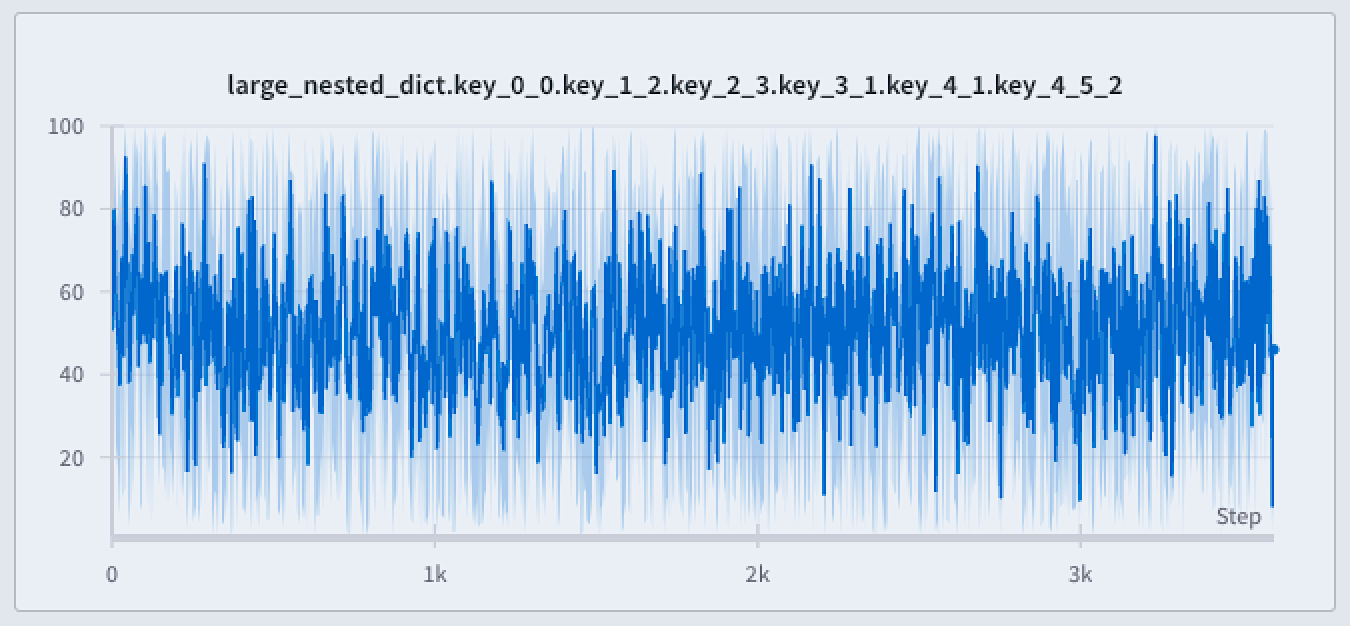
The shaded areas of a full-fidelity line plot can show:- Min/Max: For each X-axis point, shade the area between the minimum and maximum values. The shaded area shows all points from the lowest to the highest value in each bucket: where are the values in a given bucket.
- Standard deviation: For each X-axis point, calculate the variability of the values using standard deviation, and shade the resulting area.
- Standard error: For each X-axis point, calculate the likelihood of a sampling error by dividing the value by the square root of the sample size:
- None: No shading (the default).
- Navigate to your workspace.
- Hover over a line plot, then click the gear icon.
- In the Data tab, set Point aggregation to Full fidelity if necessary, then configure the smoothing algorithm.
- In the Grouping tab, turn on Group runs. Optionally, set Group by to a run attribute.
- Set Agg to Mean (default), Min, or Max.
- Set Range to Min/Max, Std Dev, Std Err, or None.
- Click Apply.
Explore your data without losing data fidelity
Analyze specific regions of the dataset without missing critical points like extreme values or spikes. When you zoom in on a line plot, W&B adjusts the bucket sizes used to calculate the minimum, maximum, and last value within each bucket.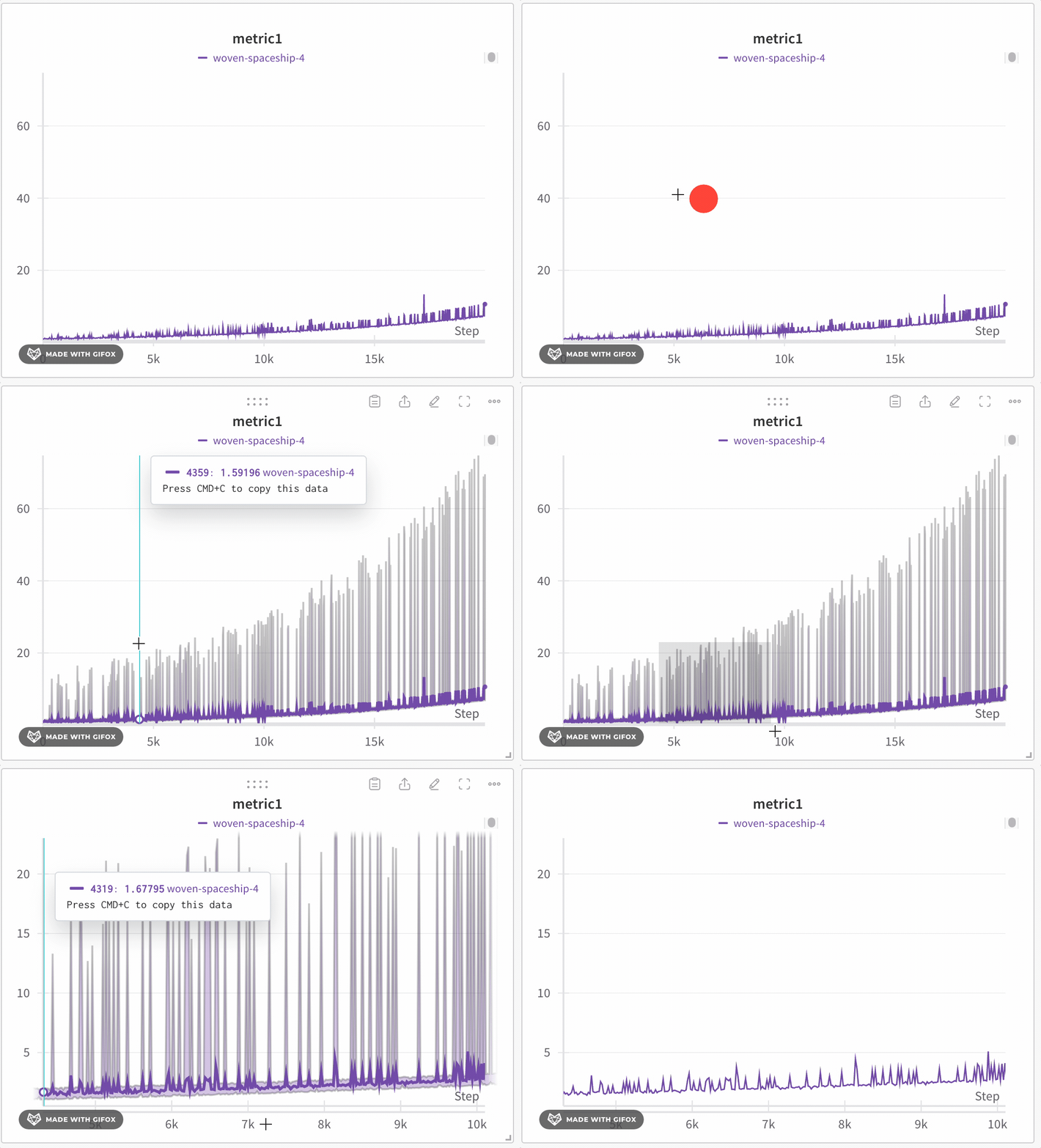
- Minimum: The lowest value in that bucket (used for shading).
- Maximum: The highest value in that bucket (used for shading).
- Line value: The last value in that bucket, used to draw the line.
- Navigate to your W&B project
- Select on the Workspace icon on the left tab
- Optionally add a line plot panel to your workspace or navigate to an existing line plot panel.
- Click and drag to select a specific region to zoom in on.
Line plot grouping and expressionsWhen you use Line Plot Grouping, W&B applies the following based on the mode selected:
- Non-windowed sampling (grouping): Aligns points across runs on the x-axis. The average is taken if multiple points share the same x-value; otherwise, they appear as discrete points.
- Windowed sampling (grouping and expressions): Divides the x-axis either into 250 buckets or the number of points in the longest line (whichever is smaller). W&B takes an average of points within each bucket.
- Full fidelity (grouping and expressions): Similar to non-windowed sampling, but fetches up to 500 points per run to balance performance and detail.
Random sampling
Random sampling uses 1500 randomly sampled points to render line plots. Because sampling drops points, it make spotting outliers or spikes more difficult.Enable random sampling
By default, W&B uses full fidelity mode. To enable random sampling, follow these steps:- All charts in a workspace
- Individual chart in a workspace
- Navigate to your W&B project
- Select on the Workspace icon on the left tab
- Select the gear icon on the top right corner of the screen next to the left of the Add panels button.
- From the UI slider that appears, select Line plots
- Choose Random sampling from the Point aggregation section