> ## Documentation Index
> Fetch the complete documentation index at: https://wb-21fd5541-docs-1917.mintlify.site/llms.txt
> Use this file to discover all available pages before exploring further.
# W&B Mobile App (iOS)
> From your iPhone or iPad, track training runs, review console logs, view line plots with precise metric tooltips, search project panels with regular expressions, and explore your W&B Models projects.
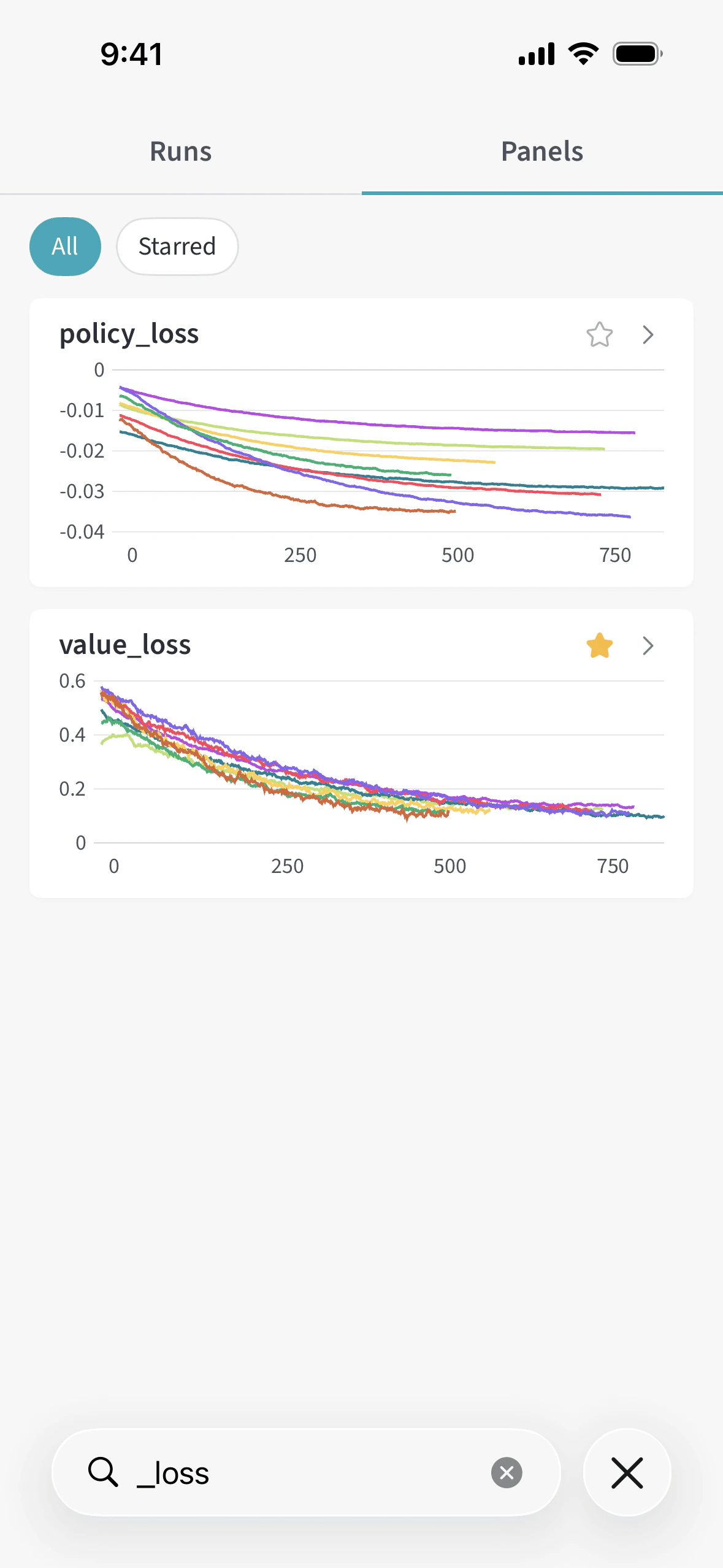
 The W\&B Mobile App for iOS keeps you connected to your W\&B Models projects wherever you go. From your iPhone or iPad, track training runs and read run logs in real time, view line plots, explore project histories, and follow your team's progress.
The mobile app is only available for [Multi-tenant Cloud](/platform/hosting/hosting-options/multi_tenant_cloud) accounts. It is not available for [Dedicated Cloud](/platform/hosting/hosting-options/dedicated-cloud) or [Self-Managed](/platform/hosting/hosting-options/self-managed) deployments.
## Download the app
## Features
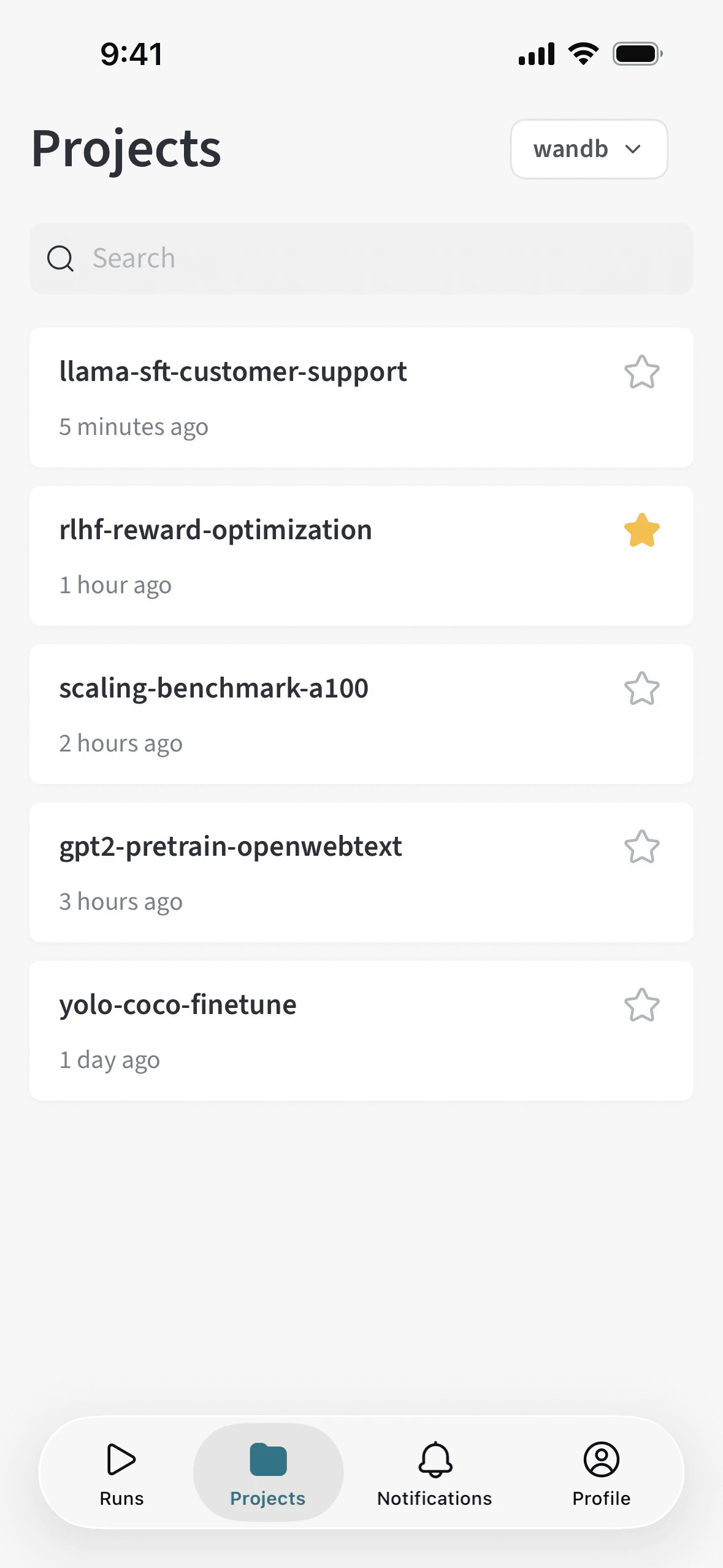
* **Explore projects**: Browse and search across your W\&B projects.
* **Full project history**: Metric charts on project panels include data from *all runs* in the project, not only the latest run.
* **Star projects**: See your most important projects at a glance. Click the star icon next to a project to star it. To filter the list to only starred projects, click the **Starred** tab at the top of the list.
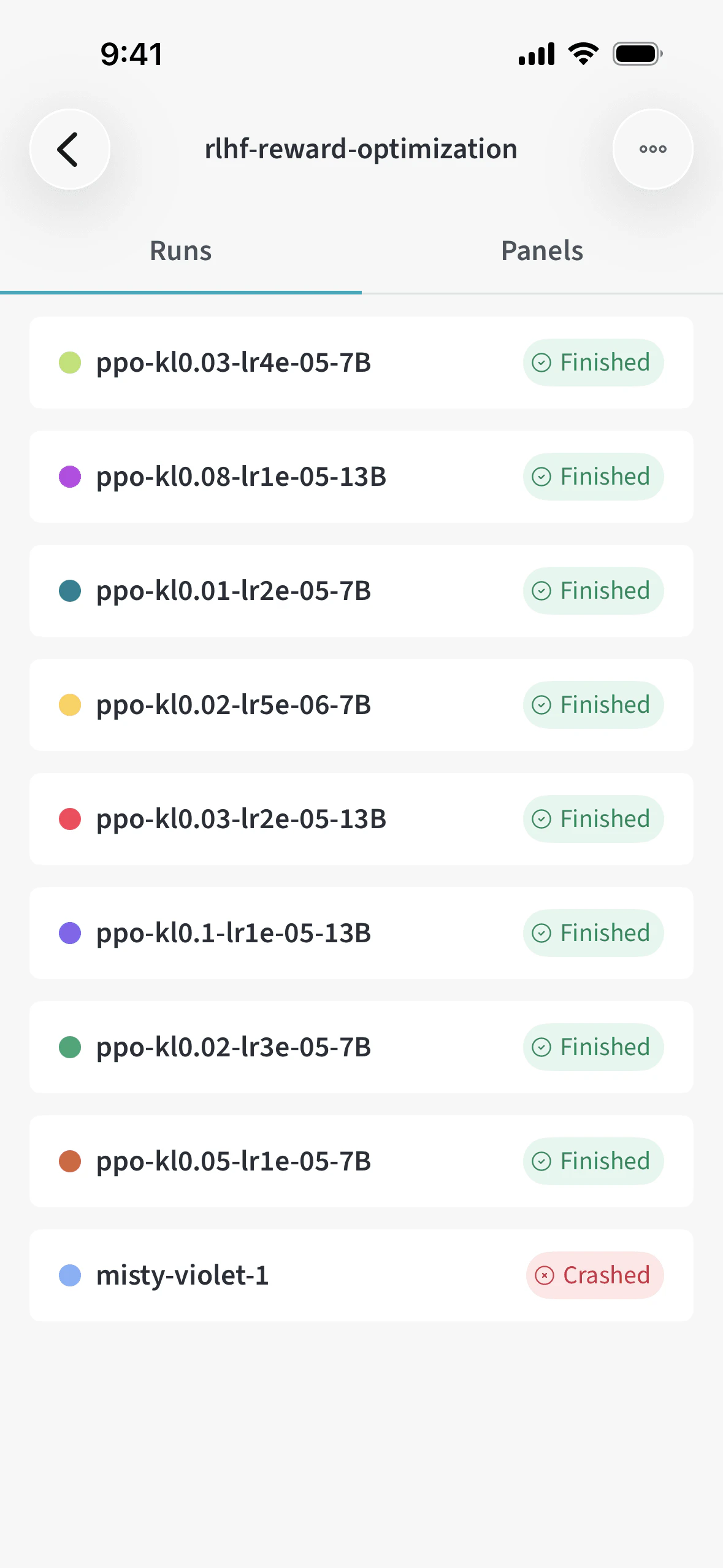
* **Track experiments**: View run status, metrics, and line plots for your experiments in real time.
* **Run overview tab**: On each run, open the **Overview** tab for a dedicated summary of run details alongside metrics and logs.
* **Mobile-optimized panel grouping**: Panels are automatically grouped by name into collapsible sections. Sections are a single level (not nested), and grouping follows the same rules as [workspace panels](/models/app/features/panels) in the W\&B web app, so the layout stays consistent when you move between desktop and your phone.
* **Star panels**: See your most important panels at a glance. When viewing a run or a project, click the star icon at the top of a panel to star it. To filter the list to only starred panels, click the **Starred** tab at the top of the list.
* **Search panels**: When viewing a run or a project, use the **panel search** field at the bottom of the screen to filter which runs appear in each chart. You can search with [JavaScript regular expressions](https://www.w3schools.com/js/js_regexp.asp) to match patterns in run names.
* **Chart tooltips**: On line charts, tooltips show metric values with up to four decimal places so you can read small changes accurately.
* **Stop runs**: When viewing an in-progress run, click the **action ()** menu, then click **Stop run**.
* **View console logs**: View [console logs](/models/runs/view-logged-runs#logs) for active or completed runs, or download logs for completed runs. The app polls active runs for new log lines every 5 seconds. The most recent 10,000 lines display by default, and you can scroll backward to view older logs. Log search stays responsive even for very large outputs.
* **Switch teams**: Use the **team picker** to change teams. The picker uses an updated layout for quicker navigation.
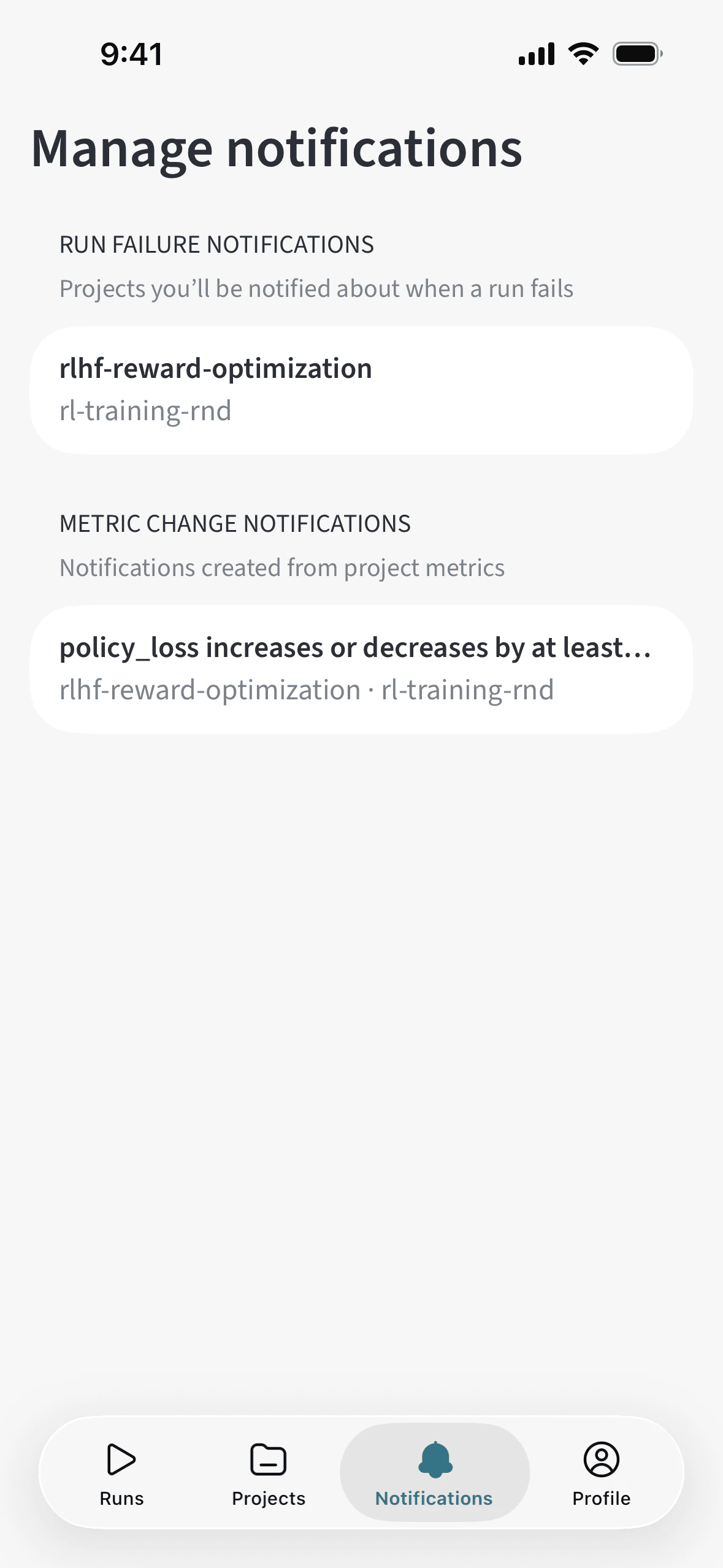
* **Stay informed**: Get updates on your experiments without opening your laptop using notifications. **Remove alerts** you no longer need from the **Notifications** tab by swiping them away.
## Set up notifications
You can configure notifications in two ways:
**Metric threshold alerts**
1. Navigate to a run.
2. Tap the graph to enter fullscreen view.
3. Tap the bell icon on the top-right.
4. Set notifications that trigger when future runs cross the specified metric threshold.
**Run failure alerts**
1. Navigate to a project.
2. Tap the **action ()** menu on the top-right.
3. Select **Run failed alert** to receive notifications for future run failures in that project.
The **Manage notifications** screen lists both kinds of settings in one place, with short descriptions that explain what each section controls.
The W\&B Mobile App for iOS keeps you connected to your W\&B Models projects wherever you go. From your iPhone or iPad, track training runs and read run logs in real time, view line plots, explore project histories, and follow your team's progress.
The mobile app is only available for [Multi-tenant Cloud](/platform/hosting/hosting-options/multi_tenant_cloud) accounts. It is not available for [Dedicated Cloud](/platform/hosting/hosting-options/dedicated-cloud) or [Self-Managed](/platform/hosting/hosting-options/self-managed) deployments.
## Download the app
## Features
* **Explore projects**: Browse and search across your W\&B projects.
* **Full project history**: Metric charts on project panels include data from *all runs* in the project, not only the latest run.
* **Star projects**: See your most important projects at a glance. Click the star icon next to a project to star it. To filter the list to only starred projects, click the **Starred** tab at the top of the list.
* **Track experiments**: View run status, metrics, and line plots for your experiments in real time.
* **Run overview tab**: On each run, open the **Overview** tab for a dedicated summary of run details alongside metrics and logs.
* **Mobile-optimized panel grouping**: Panels are automatically grouped by name into collapsible sections. Sections are a single level (not nested), and grouping follows the same rules as [workspace panels](/models/app/features/panels) in the W\&B web app, so the layout stays consistent when you move between desktop and your phone.
* **Star panels**: See your most important panels at a glance. When viewing a run or a project, click the star icon at the top of a panel to star it. To filter the list to only starred panels, click the **Starred** tab at the top of the list.
* **Search panels**: When viewing a run or a project, use the **panel search** field at the bottom of the screen to filter which runs appear in each chart. You can search with [JavaScript regular expressions](https://www.w3schools.com/js/js_regexp.asp) to match patterns in run names.
* **Chart tooltips**: On line charts, tooltips show metric values with up to four decimal places so you can read small changes accurately.
* **Stop runs**: When viewing an in-progress run, click the **action ()** menu, then click **Stop run**.
* **View console logs**: View [console logs](/models/runs/view-logged-runs#logs) for active or completed runs, or download logs for completed runs. The app polls active runs for new log lines every 5 seconds. The most recent 10,000 lines display by default, and you can scroll backward to view older logs. Log search stays responsive even for very large outputs.
* **Switch teams**: Use the **team picker** to change teams. The picker uses an updated layout for quicker navigation.
* **Stay informed**: Get updates on your experiments without opening your laptop using notifications. **Remove alerts** you no longer need from the **Notifications** tab by swiping them away.
## Set up notifications
You can configure notifications in two ways:
**Metric threshold alerts**
1. Navigate to a run.
2. Tap the graph to enter fullscreen view.
3. Tap the bell icon on the top-right.
4. Set notifications that trigger when future runs cross the specified metric threshold.
**Run failure alerts**
1. Navigate to a project.
2. Tap the **action ()** menu on the top-right.
3. Select **Run failed alert** to receive notifications for future run failures in that project.
The **Manage notifications** screen lists both kinds of settings in one place, with short descriptions that explain what each section controls.